
Before adding new ‘Exchange’ account on your mobile device, you have to delete your current Exchange account. Please follow the steps below:
- Go to Applications > Email. The Email screen will open.
- On the Email screen, bring up the settings menu and tap Accounts. The Accounts screen will open.
- Press and hold the Exchange Account you want to delete until the Menu window opens.
- On the Menu window, click Remove Account. A Remove Account warning window will open.
- On the Remove Account warning window, tap OK or Remove Account to finish. You have successfully deleted your Exchange account.
Set up Exchange ActiveSync on your Android smartphone
When you add your Exchange ActiveSync account, you can sync your Atlantic Mail, Contacts, Calendars, Reminders, and Notes with your device.
Note: some screen options may vary on different devices.
-
Add your Exchange email account
Tap Apps > Settings -

Select Passwords & Accounts or Cloud and Accounts or Accounts and Backup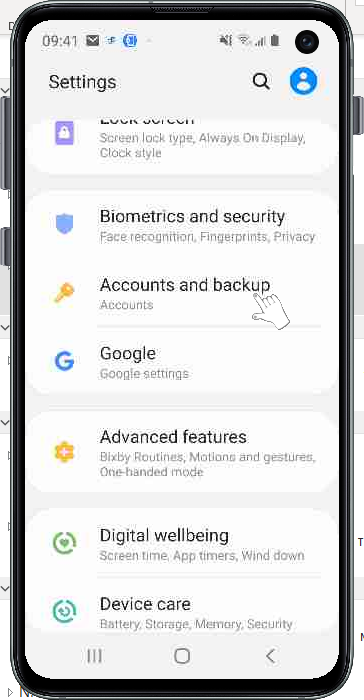
Tap Accounts > Add Account

Select Microsoft Exchange ActiveSync
-
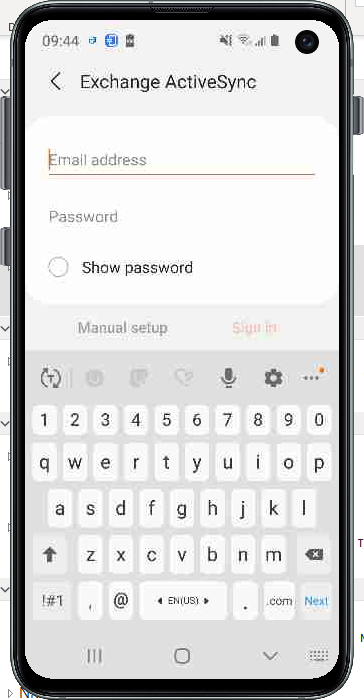
Enter your address
Enter your email address (Firstname_Lastname@atlantic.ca)
Enter your Password (same as your network password)
Then tap Manual setup
-
Domain and Exchange Server information
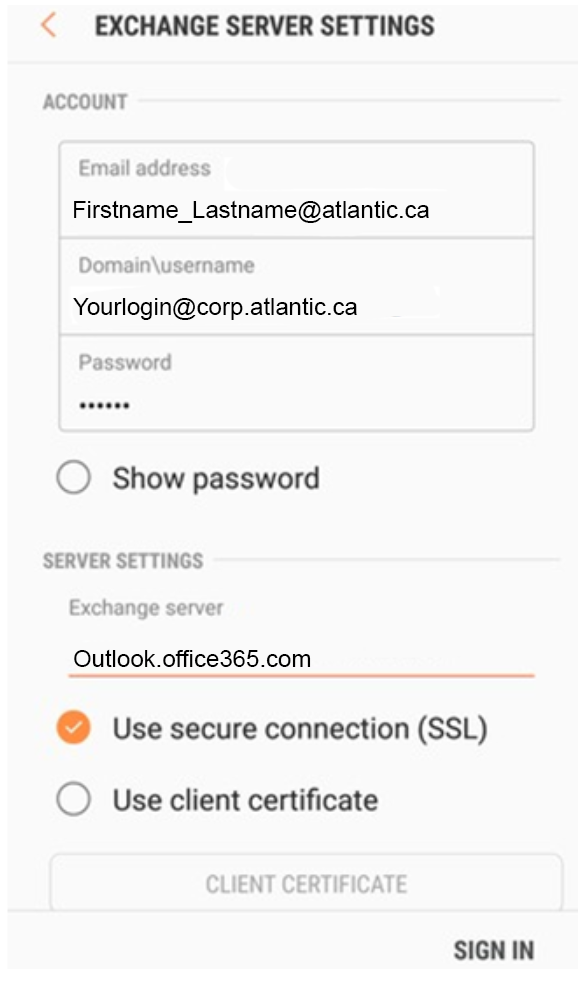
Enter additional server information:
Exchange Server: outlook.office365.com
Domain\Username: yourlogin@corp.atlantic.caNote: ‘yourlogin’ is same as on your computer.
Password: same as your network password
Then tap Next
-
Edit your Exchange settings (optional)
Tap Settings > Passwords & Accounts, then select your Exchange account.You can also set up automatic out-of-office replies, and change how often you want your Mail to sync.
Recommended sync settings:Mail – maximum up to 1 month
Sync Schedule – PushEmails Retrieval size – No limit
Calendar sync – All

Comments
0 comments
Please sign in to leave a comment.