
This document provides instructions on how to install, configure, and use the Sophos VPN Client with One-Time Passwords (OTP), to create a secure remote connection to the Atlantic corporate network, from anywhere in the world that has Internet access.
This requires the use of an Android or iOS mobile device with a data plan. A small application will be installed on the device, and will require a very minimal amount of data. The sole purpose of the application is to generate a random 6-digit number, every 30 seconds, which will be used as part of the password when connecting remotely.
Any questions or concerns should be directed to the Atlantic Packaging I.T. Infrastructure group.
- On your IOS or Android mobile device, go to the Play Store or App Store, and install the Sophos
Authenticator app. It will place a shortcut to the app on your mobile device. The icon will be
labelled Authenticator. Once installed, put down your mobile device for now.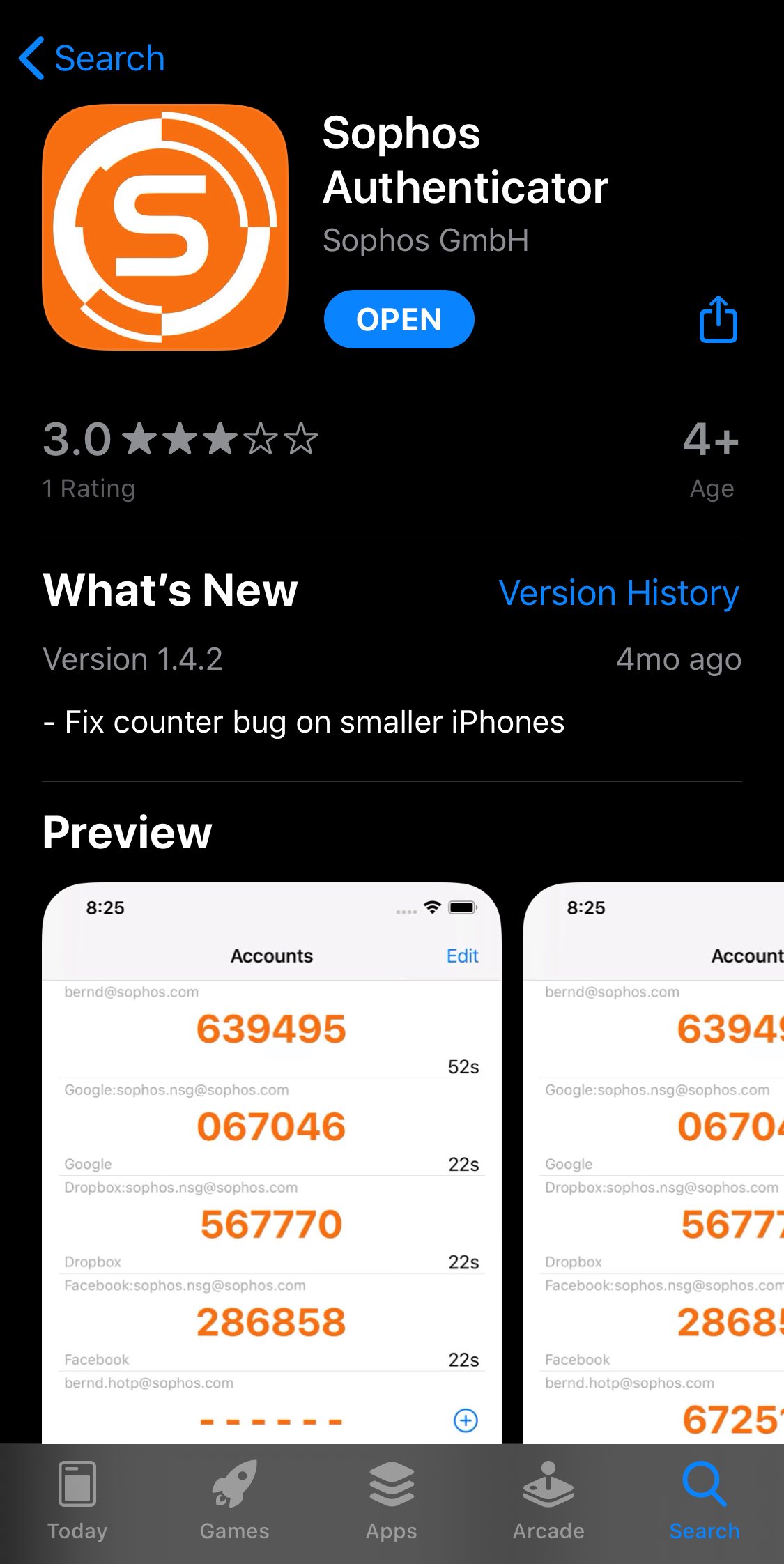
- On the computer where you will be installing the Tunnelblick. Go to: https://tunnelblick.net/
Download the latest stable release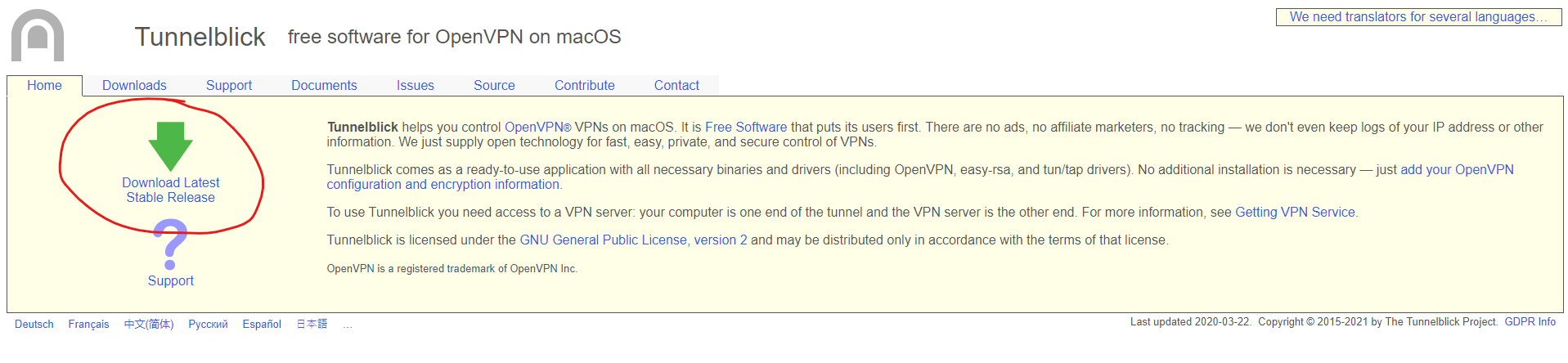
- Click on the download file > double click on Tunnelblick to begin the installation

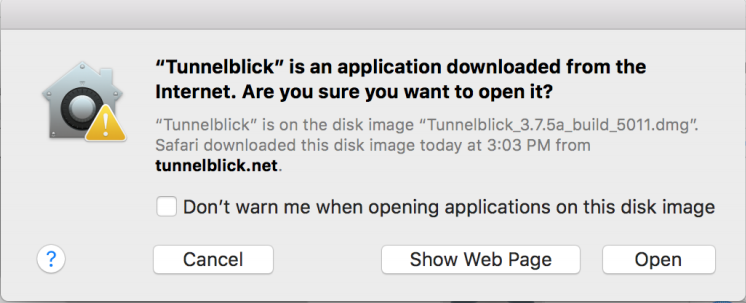
- Open
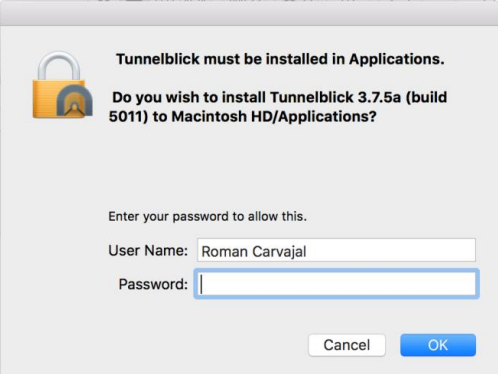
- Enter your admin credentials
- Go to the Sophos User Portal and log in to the portal with the username and password you
connect to the corporate network with. Do NOT include “corp\” in the username.
https://cl-utm1.atlantic.ca:4443 - Upon successful login, you will be presented with a QR code on your monitor. If you are
prompted with an invalid username and password by policy message, please contact the
the administrator of Sophos VPN.
QR code in Sophos User Portal.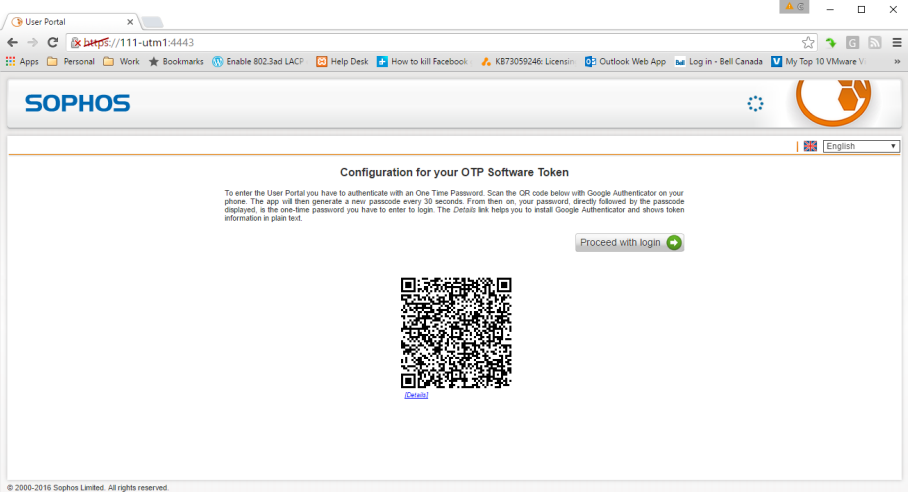
- On your mobile device, open the Authenticator app that you installed.
- Choose the first option to “Scan QR code”.
- Scan the QR code displayed on your monitor.
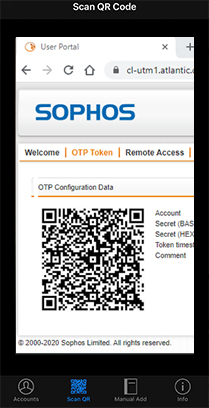
- If successful, you should be presented with a screen on your mobile device. Put down your
mobile device for now.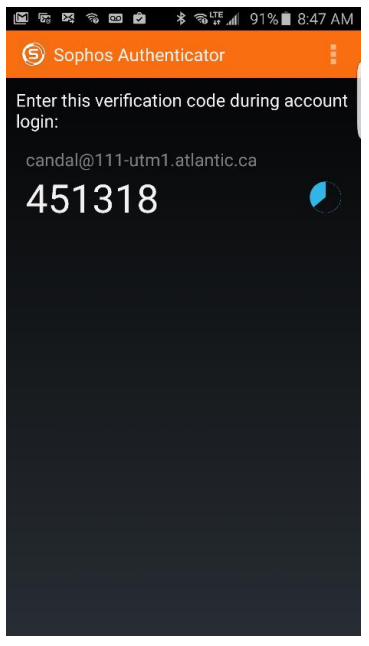
- On your computer, click on “Proceed with login”
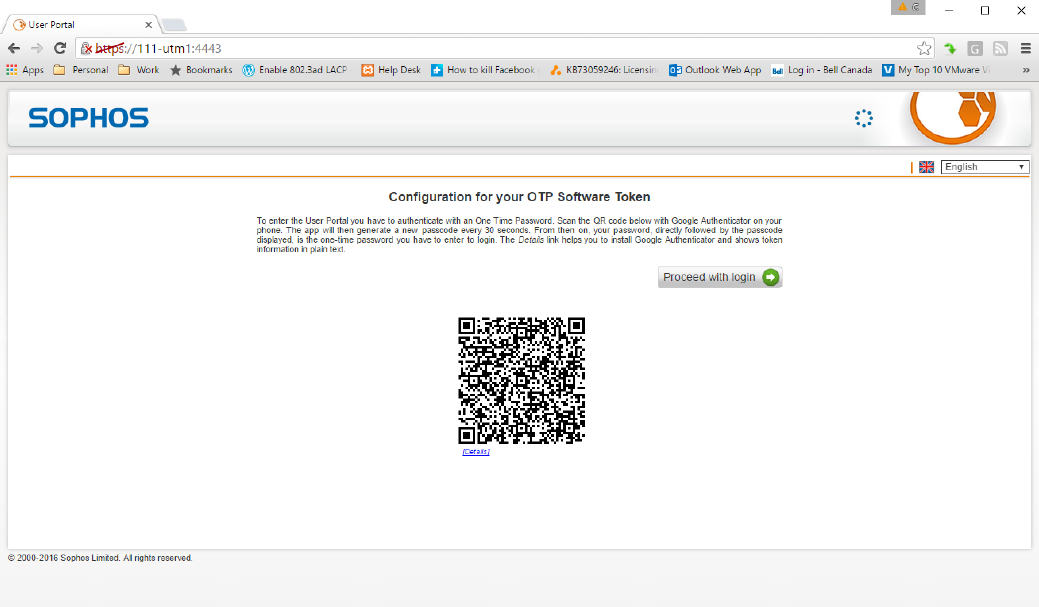
- You will once again be presented with the login screen to the Sophos User Portal. Log in to the
portal with the username and password you connect to the corporate network with. Do NOT
include “corp\” in the username. At the end of your password, you need to include the 6 digits
from the Authenticator app on your mobile device. This number changes every 30 seconds, and
can only be used one time per log in attempt.
For example:
Username: jsmith
Password: 123Atlantic
Authenticator 6 digits pin: 196461
Sophos password will be: 123Atlantic196461

- Upon successful connection, you will now be presented with the Sophos User Portal. Click on
the Remote Access tab and select the 3rd download button.
- Double click on the .ovpn file that you downloaded
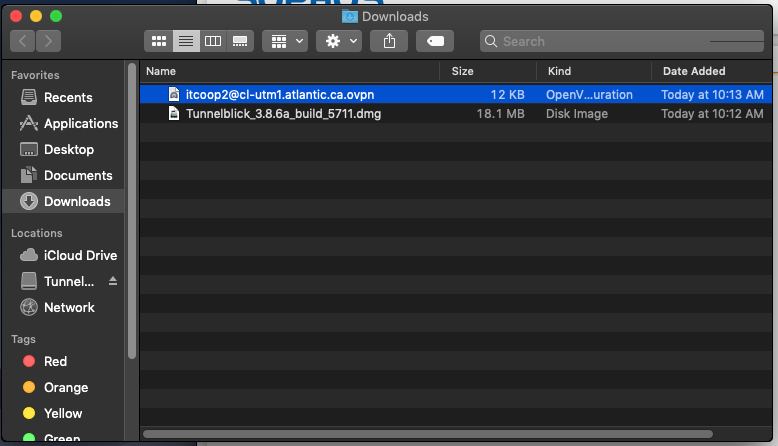
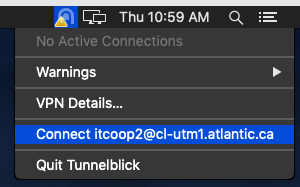
- At the top of your taskbar, click on the Tunnelblick icon > connect to your VPN
- Enter your credentials > OK
Example
Username: itcoop2
Password: Password123
Security code: the 6 digit code from your phone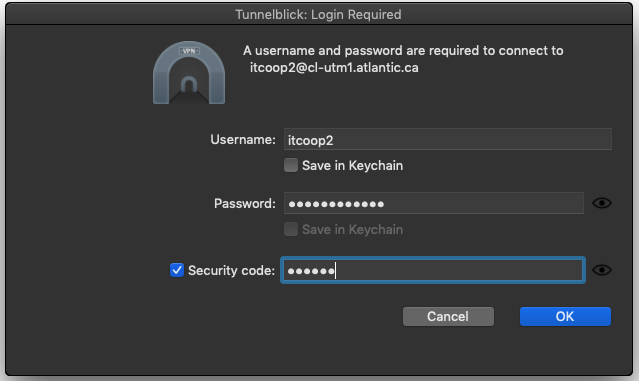
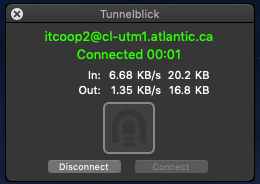
- You are connected to the Atlantic VPN.
Comments
0 comments
Please sign in to leave a comment.