
Secure print feature on the Xerox MFP devices, allows users to release print jobs only after entering their passcode. This option has been enabled for all Xerox devices, configured in Windows and it cannot be disabled.
Passcode Configuration for Secure Print
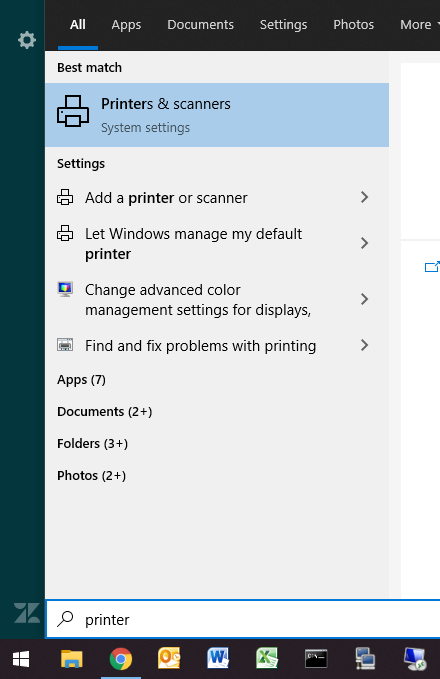
- Start > Search Printers & scanners > Open Printers & scanners
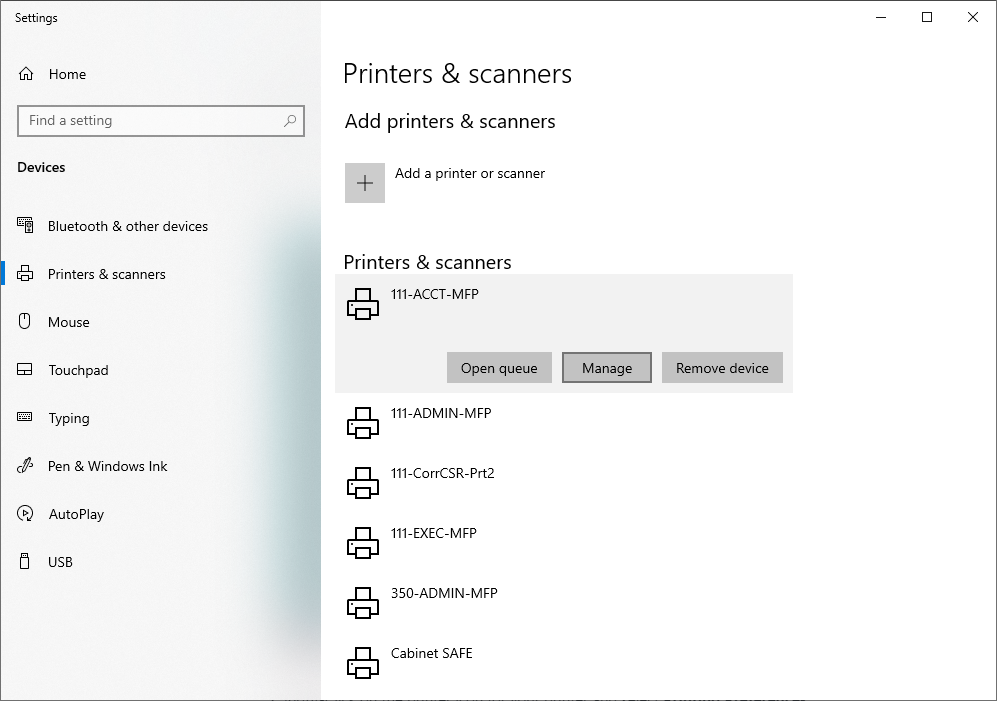
- Click on the printer you want to change > Manage
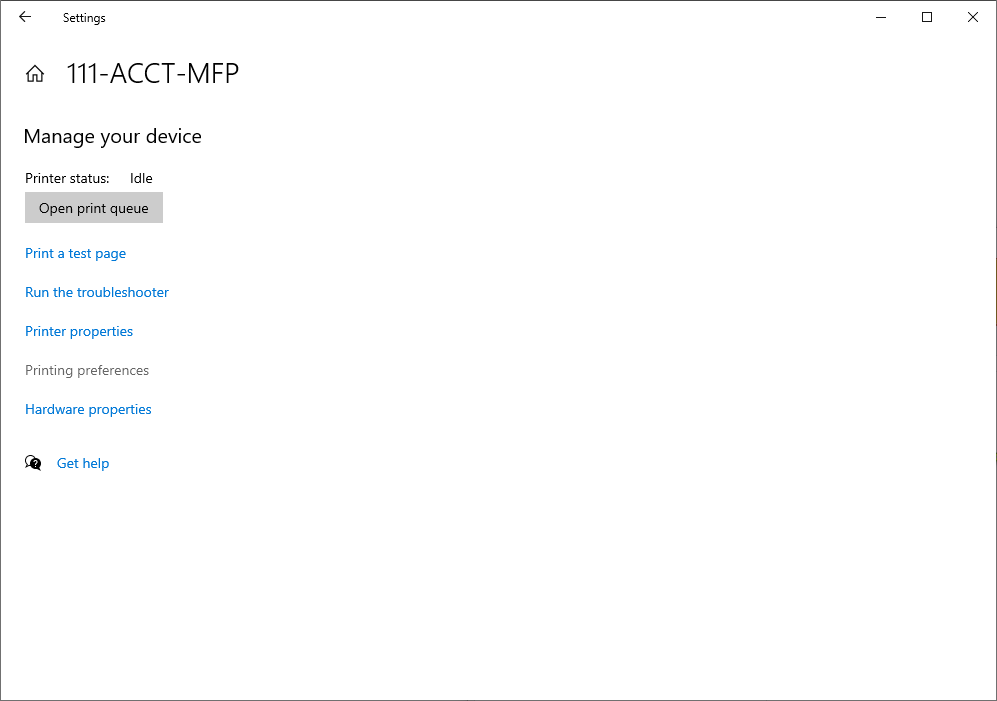
- Click on Printing prefences
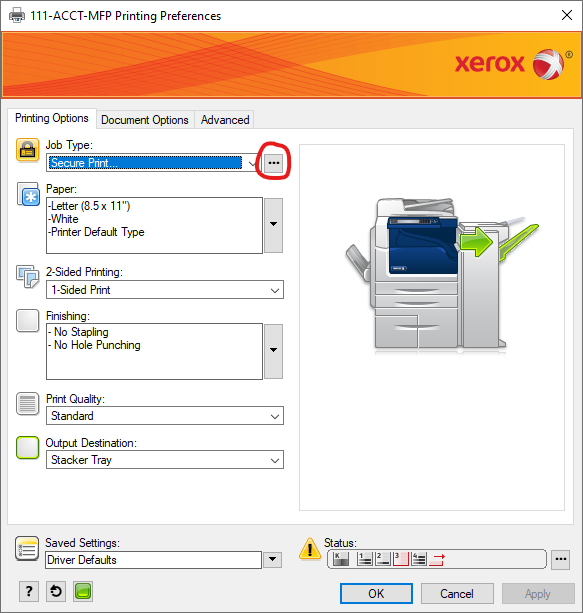
- Select the button […] located next to the Secure Print job type field
- Enter a 4-10 digits Passcode, confirm the same Passcode and click OK
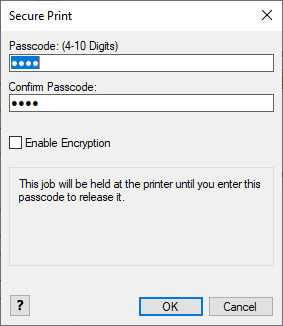
- Repeat these steps if you are using another computer to print
Releasing / Deleting Secure Jobs at the Printer
- On the printer’s control panel press the button for Job Status
- Then select Secure Print Jobs tab
- Select your Username and enter your Passcode
- Select the jobs that you need printed
- To delete a job you can select the job and press delete
Comments
0 comments
Please sign in to leave a comment.